

@Admin 08 Jul 2026 02:03 PM 3 minutes read
Complete User Guide to Creating Channels and Entries in SpurtCMS
Tags: #Technology
Complete User Guide to Creating Channels and Entries in SpurtCMS
Learn how to create and manage Channels and Entries in SpurtCMS with this step-by-step user guide. Understand key features, setup flow, and tips to organize content efficiently for your CMS projects.




Quick Summary: This article guides you through the step-by-step Creation of Channels and Entries. Read on to find out how to create Channels and Entries in SpurtCMS, from exploring existing content types to creating your own custom Channels and Entries.
Here is an overview of the steps you need to follow:
STEP 1: Getting Started: Accessing Channels & Entries
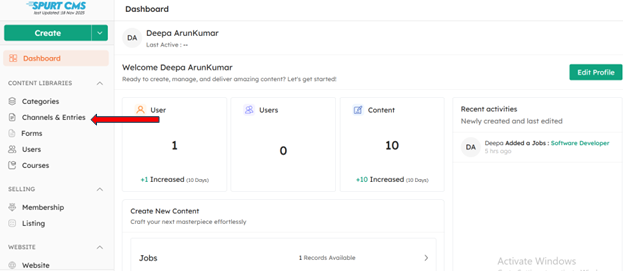
Once you log in to SpurtCMS, look at the left-hand side panel.Here, you’ll find a dedicated section called Channels and Entries. This is your central hub for managing all types of content in the SpurtCMS.
What is Channels in SpurtCMS?
A Channel in SpurtCMS is an organized content group that holds a set of similar entries.
Examples include:
* Event posts
* Job listings
* Digital products
* Blog posts
Each channel represents a specific content type or category you create to structure your website content.
STEP 2: Exploring Your Channel Collections
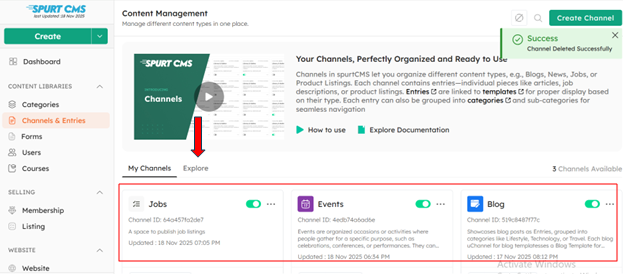
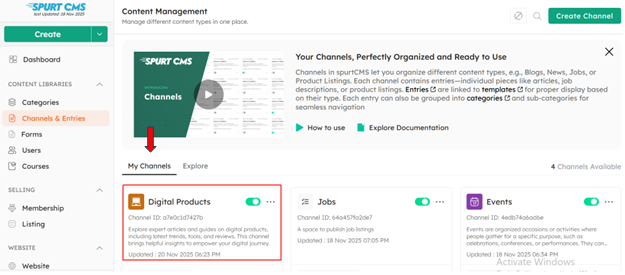
Click on Channels and Entries to open your content workspace.
You will see:
* Personalized channels based on the answers you provided during login setup.
* An Explore tab for browsing additional content types.
To add more channel types:
1. Go to the Explore tab.
2. Browse through the available options.
3. Click Add to Collection for any channel type you want. For example: Adding Digital Products.
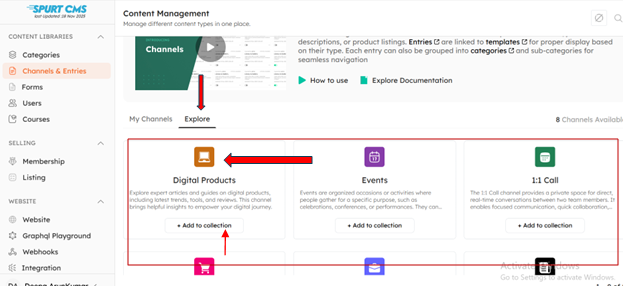
4. The newly added channel will appear under My Channel Collections.
Quick Actions for Channels
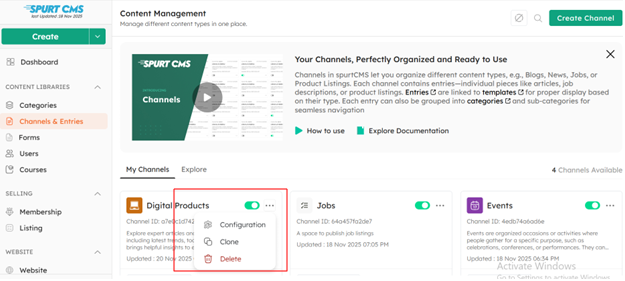
On the right side of each channel, you’ll find quick-action buttons that help streamline your workflow:
* Configure – Adjust settings for the selected channel
* Clone – Duplicate an existing channel
* Delete – Remove a channel you no longer need
These options make managing your content fast and efficient.
Step 3: Creating Your Own Custom Channel
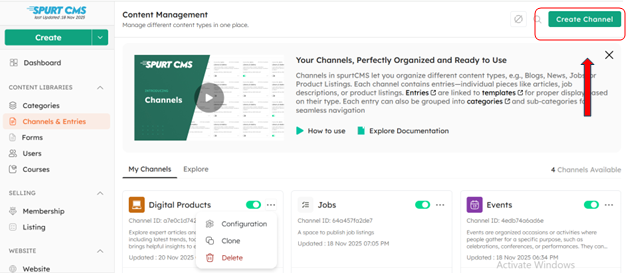
You can create your own custom channel anytime.
To create one:
1. Click Create Channel at the top-right corner.
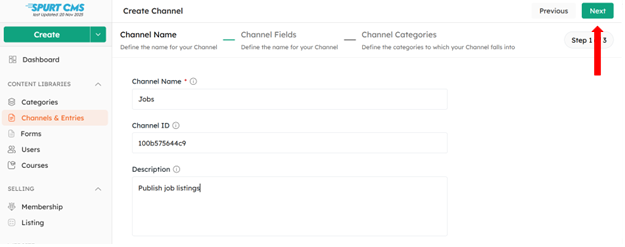
Fill in the basic configuration details:
* Channel Name – Example: Jobs
* Channel ID – Auto-generated
* Description – Example: Publish job listings
Click Next to continue.
Step 4: Adding Fields to Your Channel
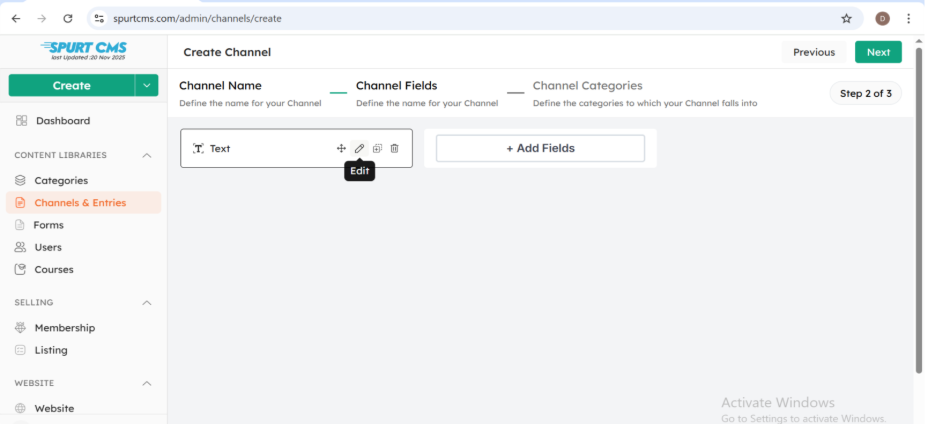
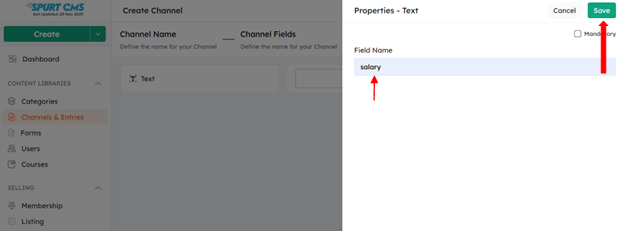
Next, you can add fields that define the data structure of your channel.
Examples:
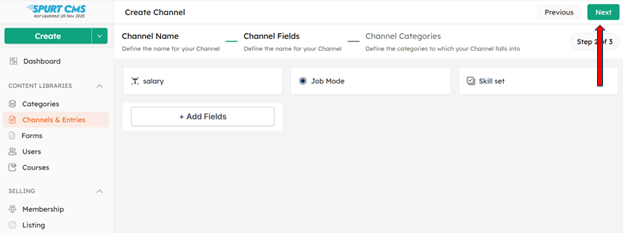
* Text Field for Salary
* Radio Buttons for Job Mode
1. Remote
2. On-site
3. Hybrid
* Dropdown List for Skill Set
1. You can edit and add skills like AI, Java, etc.
These fields appear to candidates when they view the job descriptions and help them filter results during their job search.
Click Next once the fields are configured.
Step 5: Assigning Categories
Now, go to the Categories section.
Choose the category that best matches your channel.Example: For a Jobs channel, select Jobs – Qualification.
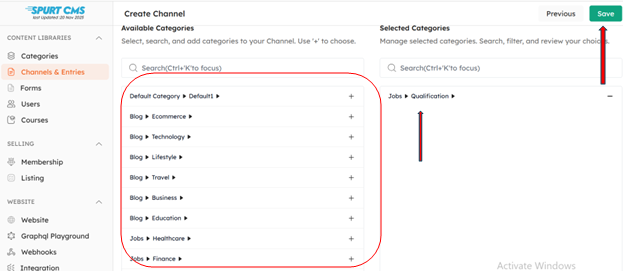
Click Save to proceed.
Your custom channel Jobs is now successfully created.
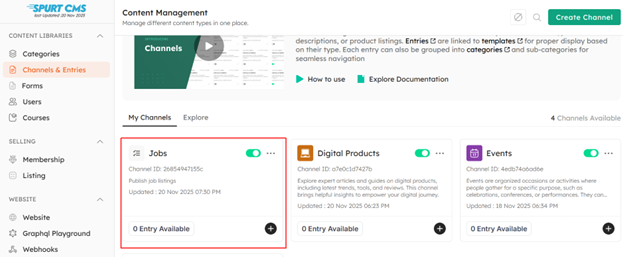
Step 6: Creating an Entry for Your Channel
An Entry is an individual piece of content inside a channel.
To create one
1. Open your channel.
2. Scroll to the bottom and click Add(+)
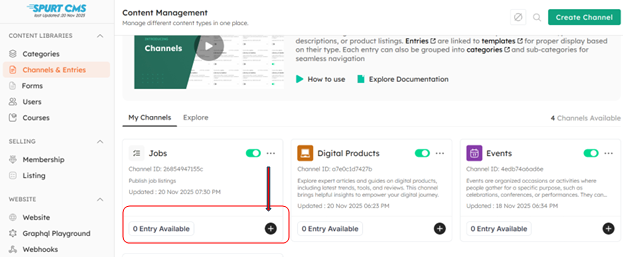
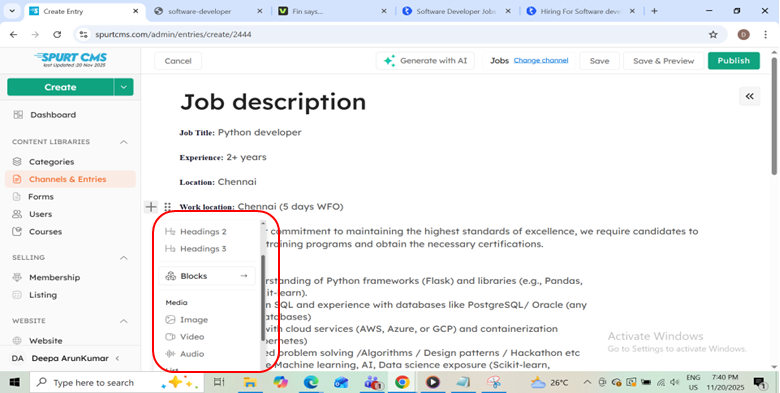
3. Enter your entry details.
4. Title – Example: Software Developer
5. Description – Add your detailed job description
6. On the left side, upload supporting files,
7. Images.
8. Audio.
9. Videos
Step 7: Configuring SEO, Data, and Additional Data
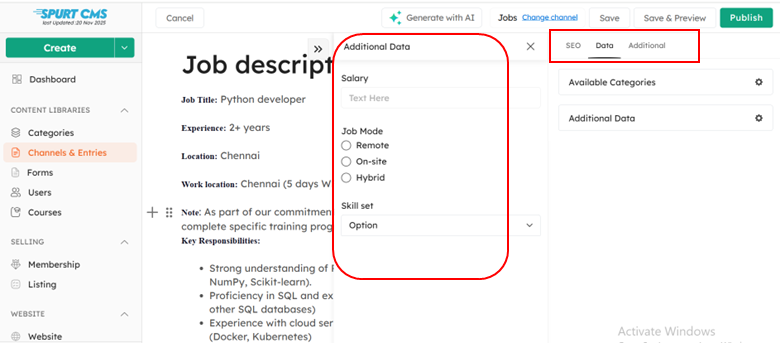
On the right-hand panel, you'll find three important tabs:
SEO
Add:
SEO Title – The title that appears in search engine results
SEO Description – A short, meaningful description
Data
This section shows categories and the fields you configured earlier.
Additional Data
Here, you’ll see every custom field you added during channel setup.
Step 8: Saving, Previewing & Publishing
* Once your entry is ready.
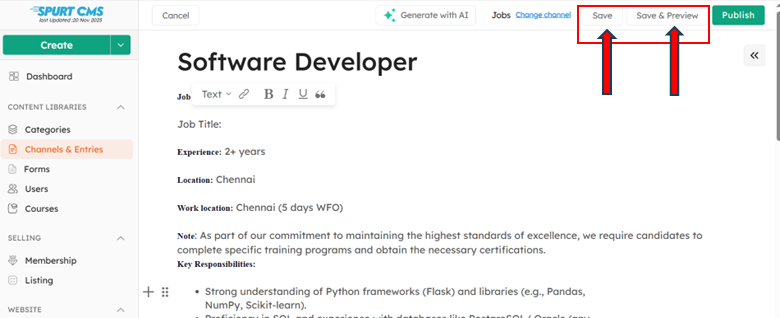
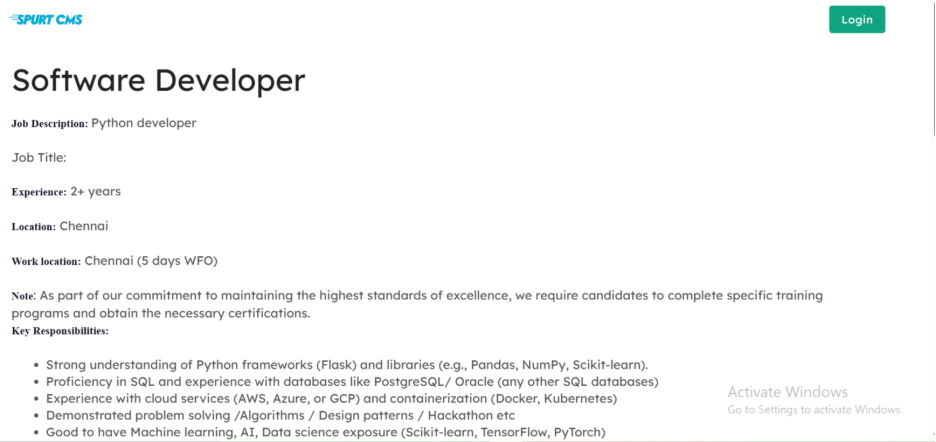
* Click Save or Save & Preview the entry to ensure everything looks correct.
Preview:
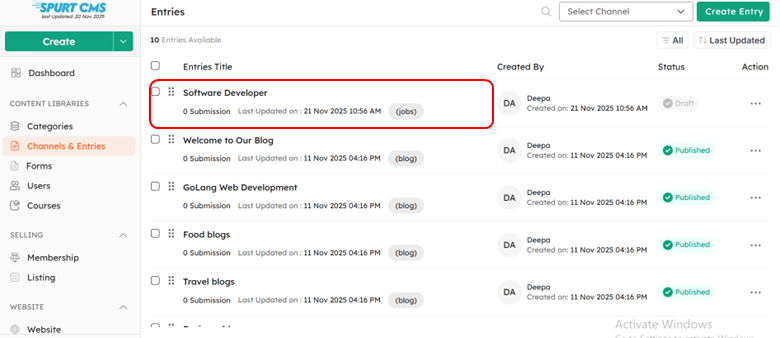
Click Publish to make it live:
Conclusion
That’s everything you need to know to get started with Channels and Entries in SpurtCMS, from exploring content types to creating channels and publishing entries.
Membership
Unlock full access to Myoan and see the entire library of paid-members only posts